Step 2: Create New Project
⏱ 3 min readCreate your first project in Transcodes Dashboard.
Create Your Project
Create New Cluster
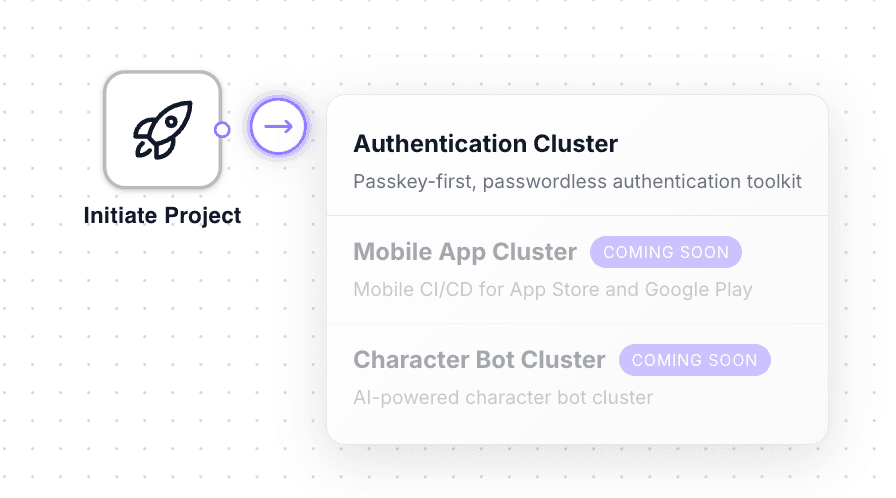
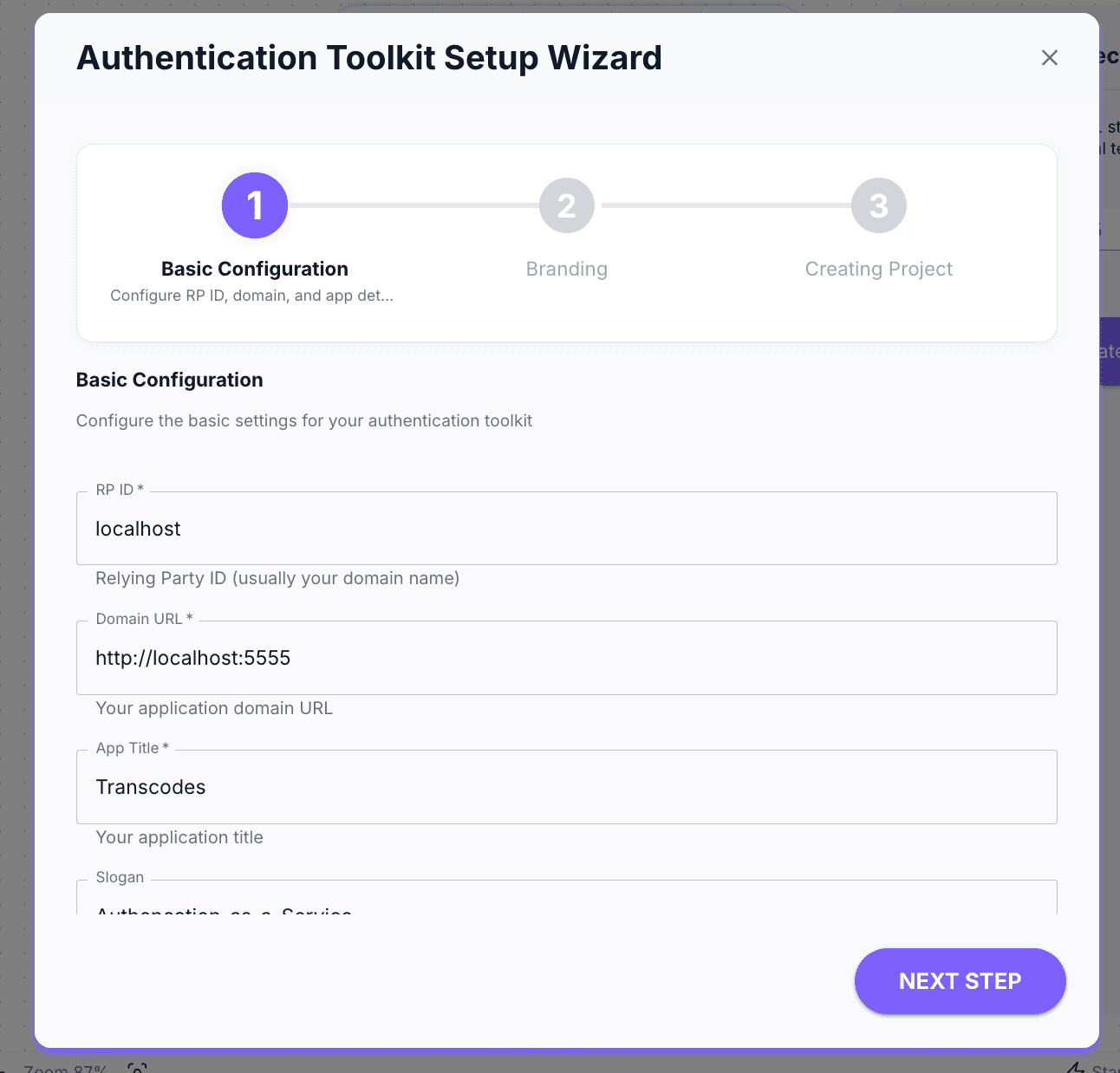
Configure Project Settings
Fill in the project details through the onboarding wizard
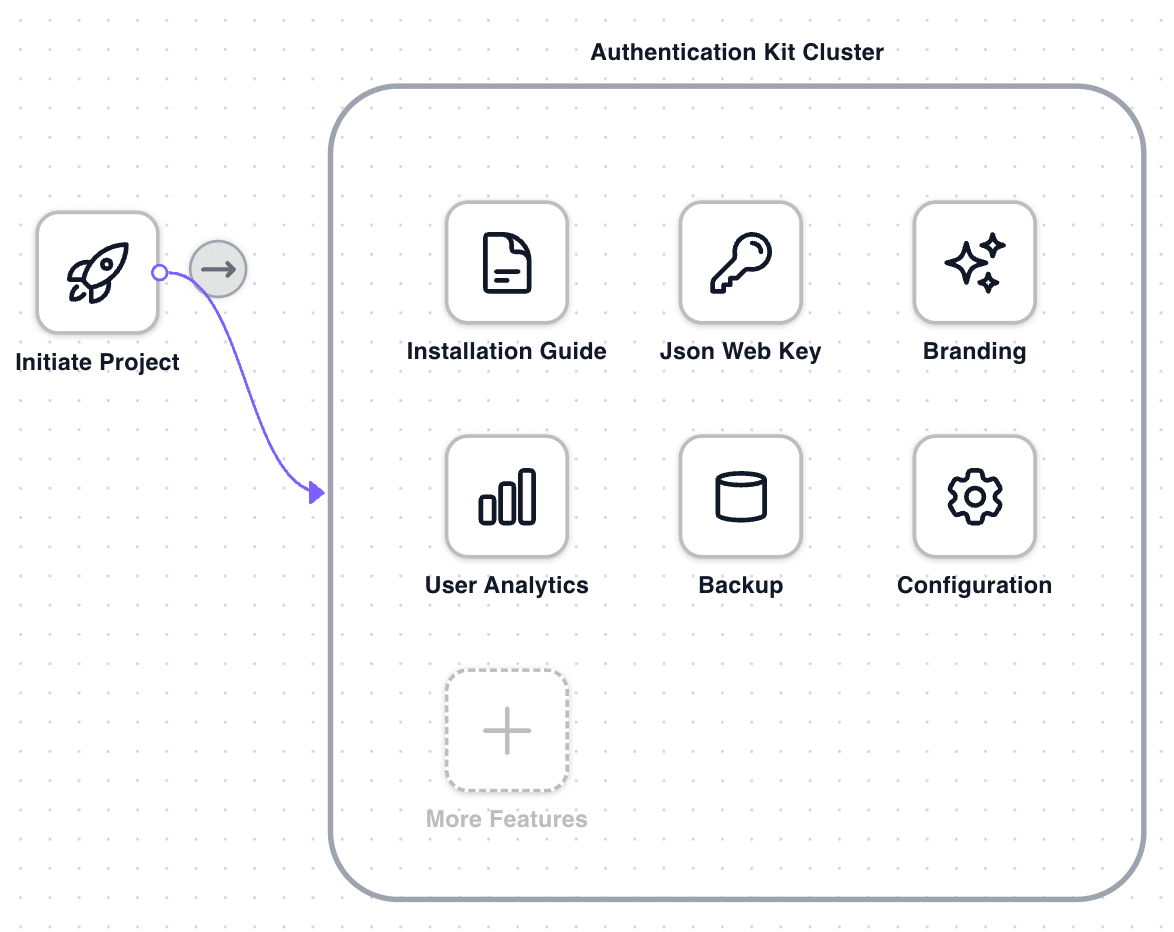
Your Project is Created and webworker.js script is ready to use
After creation, you’ll see your Project ID. Copy this—you’ll need it for the SDK initialization.
Replace {YOUR_PROJECT_ID} with your actual Project ID from the dashboard
index.html
<script
  type="module"
  src="https://cdn.transcodes.link/{YOUR_PROJECT_ID}/webworker.js"
></script>
Project Settings
You can configure these settings for each project:
| Setting | Description |
|---|---|
| Allowed Domains | Domains where authentication is permitted |
| Redirect URLs | URLs for post-authentication redirects |
| Session Duration | How long user sessions remain active |
| Branding | Customize the auth modal appearance |
What’s Next
Project created! Next step: - Step 3: Import CDN Script - Add Transcodes to your website
Last updated on