Backup
⚡ 2 min readDownload user data backups including authentication credentials and user profiles.
What the Backup Panel Does
The Backup panel allows you to download encrypted database backups with End-to-End encryption and key management for maximum security.
Primary uses:
- Backup and disaster recovery
- Project migration
- Data analysis
Panel description:
Located in the top-right section, the panel shows: “Download encrypted database backups with user-controlled encryption keys for maximum security”
What’s included:
- ✅ All user public data (email, name, etc)
- ✅ Sign in credentials and authentication methods
What’s excluded:
- ❌ Private keys and confidential data are excluded
Backups are generated on-demand and include only data stored in Transcodes servers. User private keys remain exclusively on their devices.
Prerequisites
- Active Transcodes project with registered users
- Secure storage location for backup files
Opening the Backup Panel
- Log in to Transcodes Console
- Open your project
- Locate the Authentication Kit Cluster
- Click the database icon (🗄️) labeled “Backup”
- The panel opens on the right side
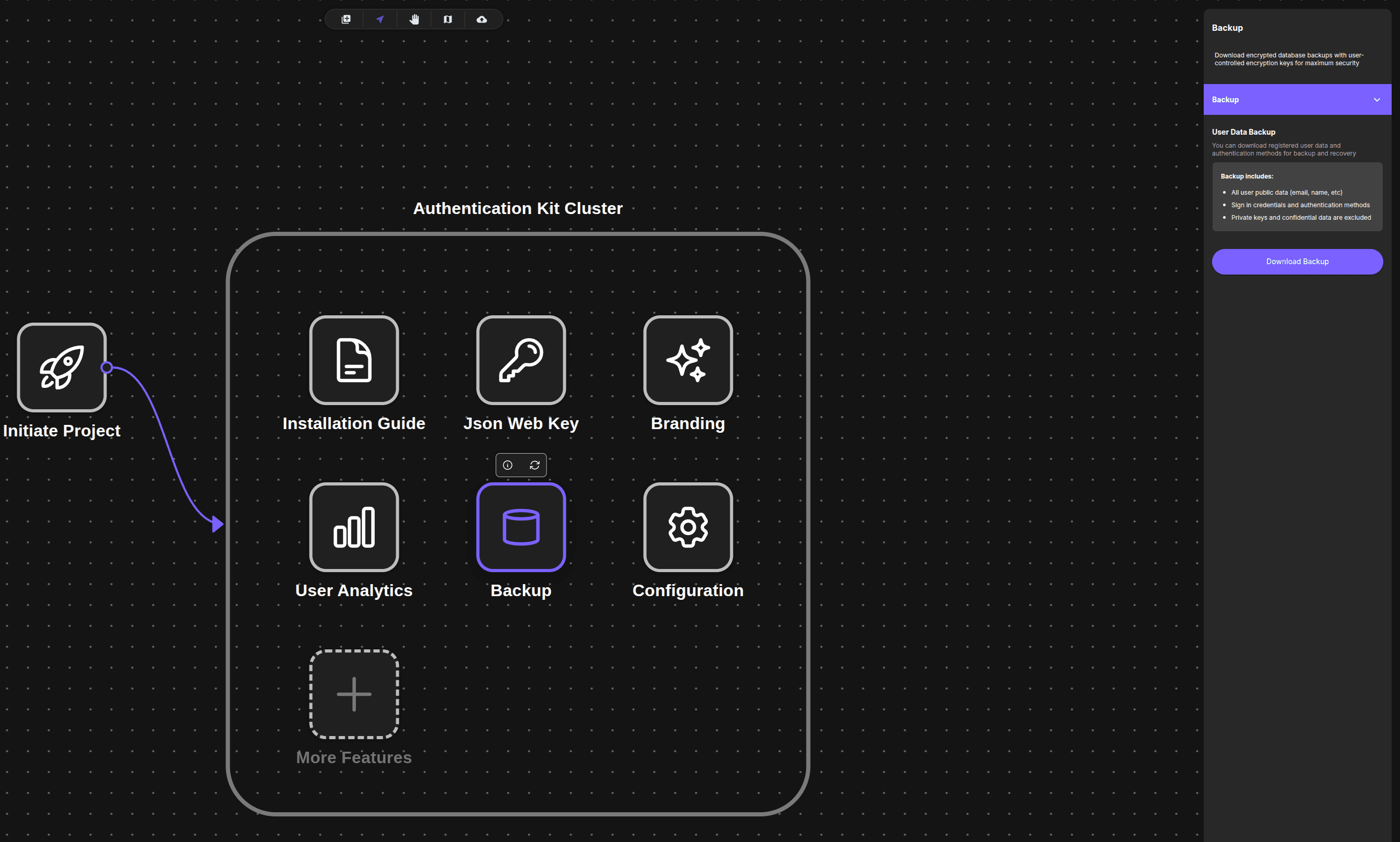
The Backup panel appears on the right with a purple “Backup” accordion section.
Downloading a Backup
The Backup panel contains a single accordion section titled “Backup” with information about what’s included in the backup.
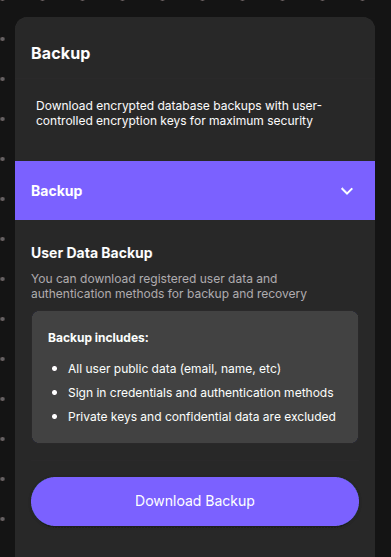
The panel shows:
- User Data Backup section
- Description: “You can download registered user data and authentication methods for backup and recovery”
- Backup includes:
- All user public data (email, name, etc)
- Sign in credentials and authentication methods
- Private keys and confidential data are excluded
- Purple Download Backup button
1. Click Download Button
To download a backup:
- Locate the Download Backup button at the bottom of the panel
- Click the button
- Transcodes server generates a backup file
- JSON file automatically downloads to your browser’s download folder
File name format:
backup-{PROJECT_ID}-{TIMESTAMP}.json

Example:
backup-proj_abc123xyz-1704211815000.json
Download time:
| Project Size | Download Time |
|---|---|
| < 100 users | Instant |
| 100-1000 users | 1-3 seconds |
| 1000+ users | 5-10 seconds |
Backup File Structure
The downloaded JSON file contains structured user data with authentication credentials organized by user.
Structure overview:
- Top level contains project metadata and timestamp
data.usersobject contains all users, keyed by user ID- Each user has a
profilewith basic information - Each user has
subcollectionswith three types of authentication methods:passkeys- Platform authenticators (Face ID, Touch ID, device biometrics)authenticators- Cross-platform authenticators (USB security keys, YubiKey)totps- Time-based one-time password (TOTP) authenticator apps
Download sample backup file:
Example Backup: Download backup-sample.json
This sample file shows the complete structure with mock data including user profiles, passkeys, authenticators, and TOTP configurations.
Key data formats:
- Timestamps use Firestore format:
{ "_seconds": 1735819200, "_nanoseconds": 123000000 } - Public keys are stored in PEM format
- TOTP secrets are encrypted
What to do next?
After downloading backups:
- Store backup files securely with encryption
- Review user data
- Configure project settings
- Explore API Reference to automate backups