Step 1: Create Your Organization
⚡ 3 min readSet up your Transcodes organization and project to get started.
Create Your Organization
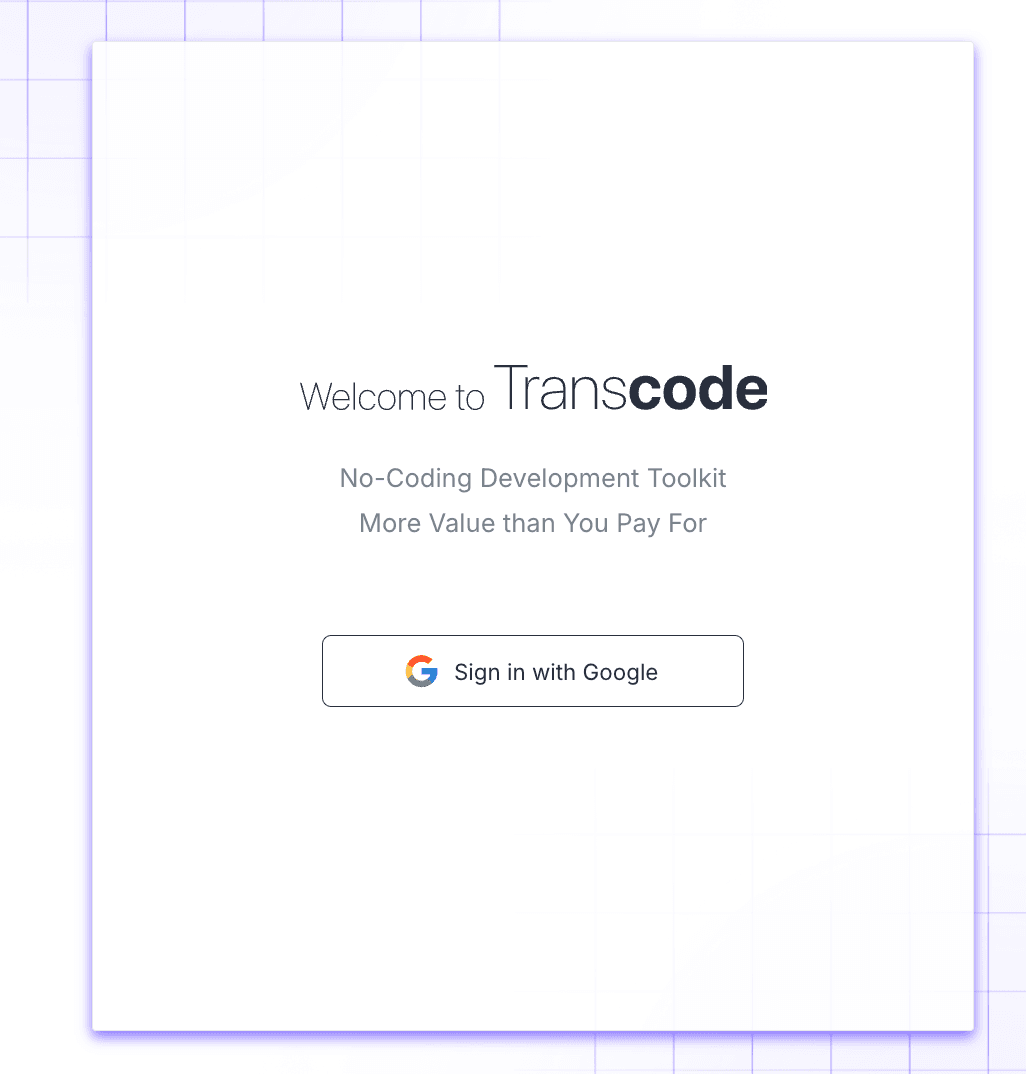
Sign in to Dashboard
Go to Transcodes Console and sign in or create an account.
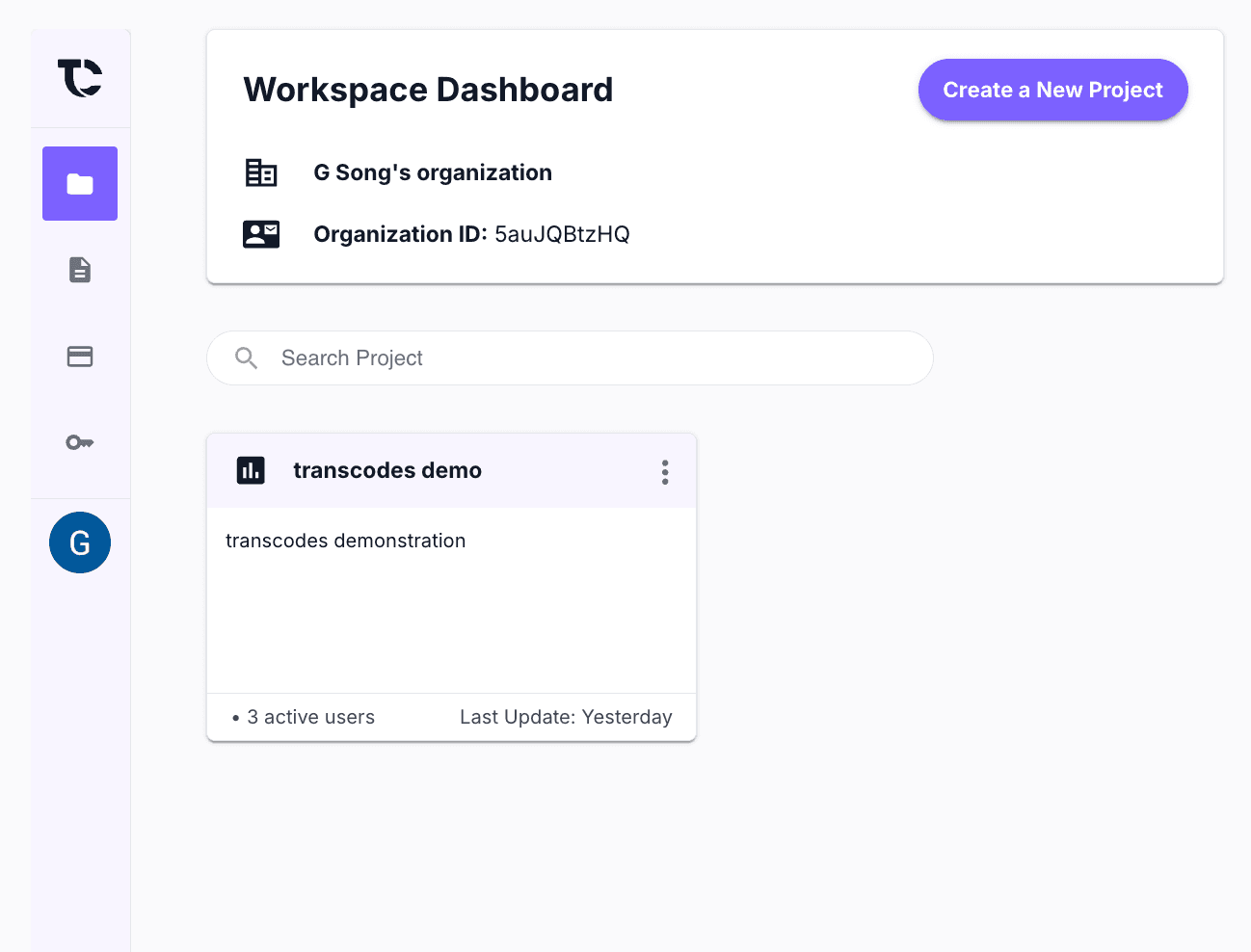
Create New Project
-
Click “Create New Project”
-
Enter project details:
- Project Name *: A name to identify your project (required, max 100 characters)
- Project Description: A brief description of your project (optional, max 200 characters)
Production Checklist
Before going live:
-
Add your domain in the Transcodes Console
-
Use HTTPS — WebAuthn requires secure contexts
-
Set up CSP if needed:
script-src https://cdn.transcodes.link
connect-src https://api.transcodes.io
frame-src https://auth.transcodes.io
For detailed information about CSP, see What is CSP?.
The SDK only works on domains you’ve authorized in the dashboard.
TypeScript Support
Full TypeScript Support: We provide complete type definitions for the Transcodes SDK. Download the type definition file and add it to your project for autocomplete and type checking—no npm package required.
How to use:
-
Download the type definition file to your project:
curl -o transcodes.d.ts https://cdn.transcodes.link/types/transcodes.d.ts -
The
transcodesglobal will now have full IntelliSense support in your IDE.
What’s Next
Organization created! Next step: - Step 2: Create New Project - Set up your first project